Email 2FA
Email 2FA adds a second authentication step by sending a one-time code or magic link to your email address after you enter your password.
How It Works
When Email 2FA is enabled, after entering your password you'll have three options to complete login:
- Enter a code - check your inbox for a 6-digit code and enter it on the login page
- Click a magic link - click the link in the email to log in directly
- Auto-detect - the login page polls for a few seconds and logs you in automatically once you click the magic link in another tab
Setting Up Email 2FA
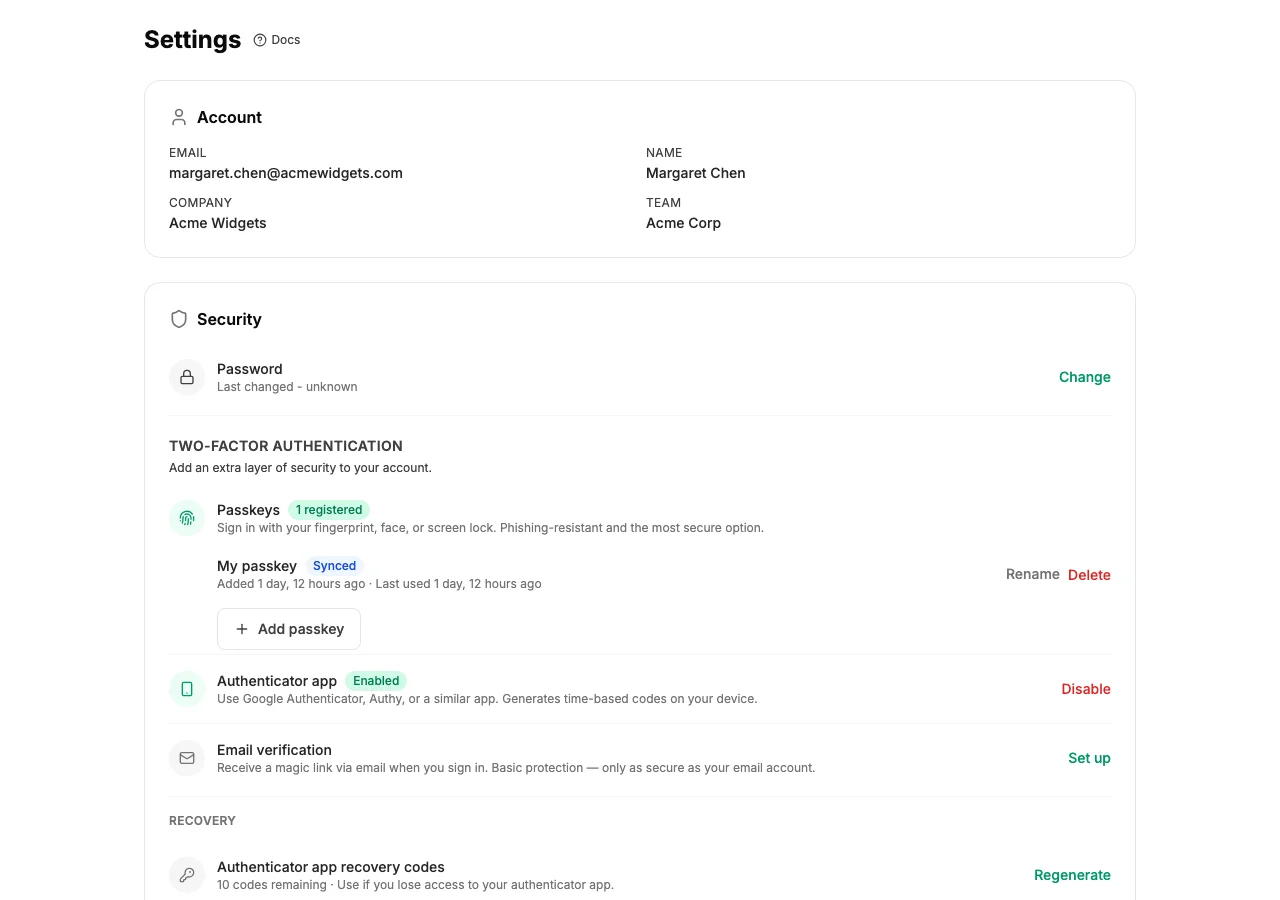
- Go to Settings → Security.
- Click Enable Email 2FA.
- The next time you log in, you'll be prompted to verify via email.
Limitations
Email 2FA is the simplest second-factor option, but it's less secure than TOTP or passkeys because it depends on email account security. For this reason:
- Email 2FA is automatically disabled when you set up TOTP or register a passkey
- The Email 2FA setup page is not available if you already have TOTP or passkeys enabled
- To re-enable Email 2FA, you'd need to first remove your stronger 2FA method