Roles & Permissions
Every team member has one of four roles that controls what parts of the console they can access.
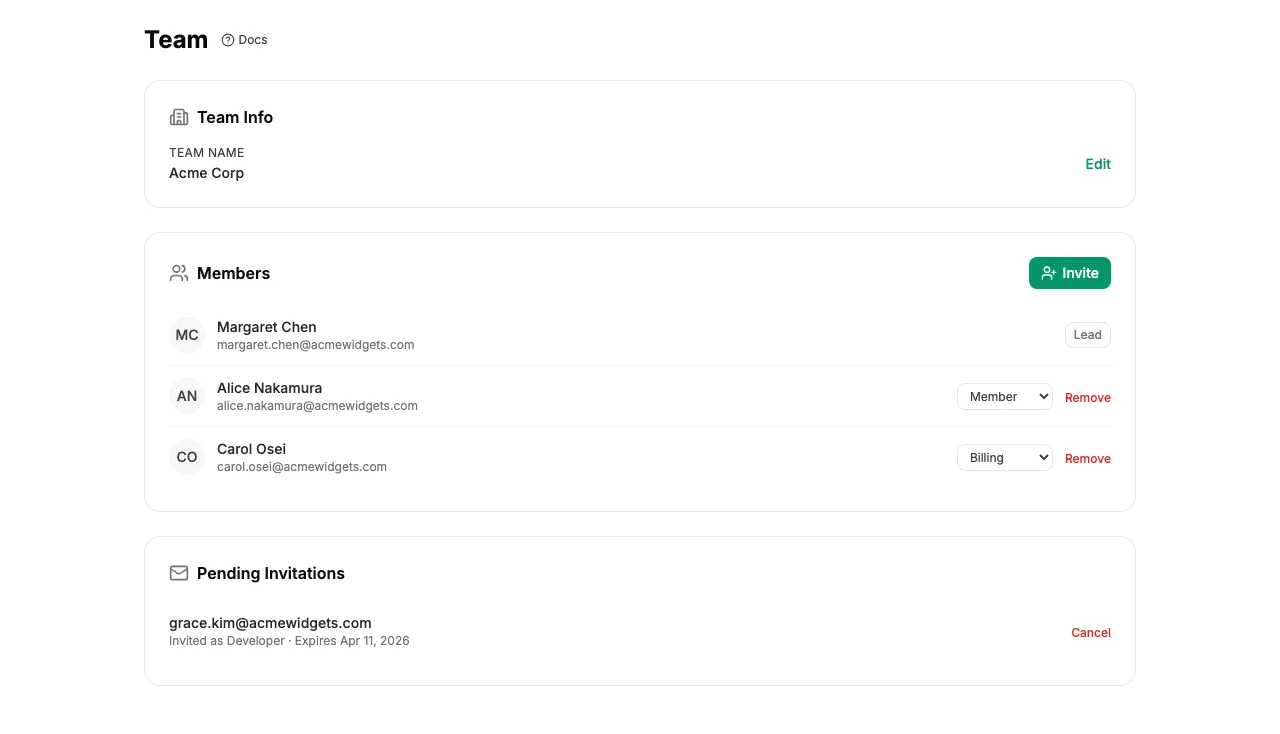
Team Roles
| Role | Access |
|---|---|
| Lead | Full access - team settings, member management, invitations, activity log, billing, API keys, webhooks, and verification cases. |
| Billing | Billing dashboard, plan management, credit top-up, and auto-replenish settings. |
| Developer | API keys, webhook endpoints, and verification cases. |
| Member | Create and view verification cases only. |
The Lead Role
When you create a team, you're automatically assigned the Lead role. Leads have full control over the team:
- Invite and remove members
- Change member roles
- Edit team name and settings
- View the team activity log
- Manage integrations (Slack, SAML)
- Everything Billing, Developer, and Member roles can do
Important: You can have multiple Leads on a team. However, you cannot remove the last Lead or change their role - there must always be at least one.
Changing Roles
Leads can change any team member's role from Settings → Team. Click the member's name, then select a new role. The change takes effect immediately - the member will see updated navigation the next time they load a page.
What Each Role Sees
The console sidebar dynamically shows only the sections available to the user's role. A Member sees only the Cases section, while a Lead sees everything. This keeps the interface clean and prevents confusion about what a team member can and can't do.