Invite Team Members
Teams grow through invitations. As a Lead, you can invite colleagues by email and assign them a role before they join.
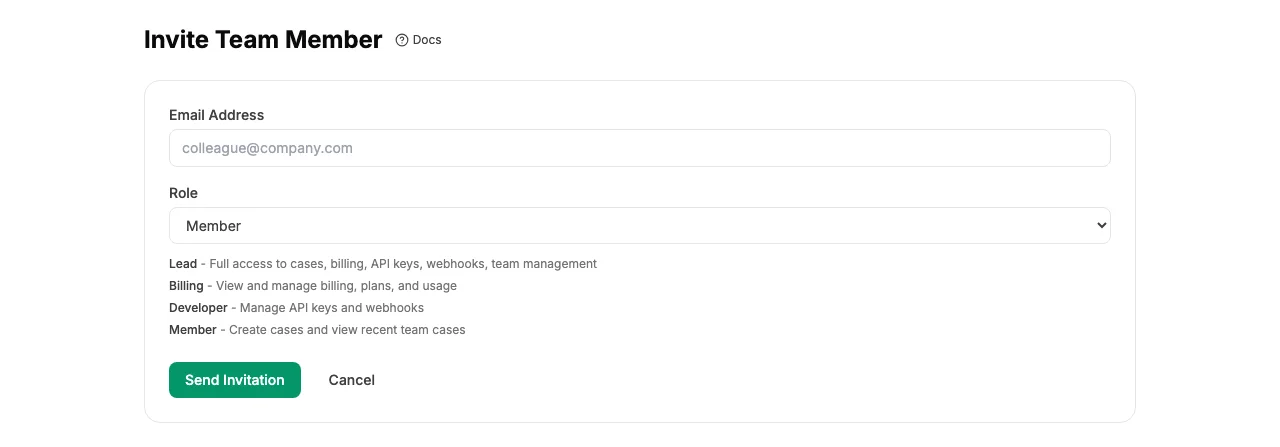
Sending an Invitation
- Go to Settings → Team in the sidebar.
- Click Invite Member.
- Enter the person's email address and choose a role:
- Lead - full administrative access
- Billing - billing and plan management only
- Developer - API keys, webhooks, and verifications
- Member - create and view verification cases only
- Click Send Invitation.
The recipient will receive an email with a link to accept the invitation and create their account. Invitations expire after 7 days.
Managing Pending Invitations
You can see all pending invitations on the team settings page. From there you can:
- Resend an invitation if the recipient didn't receive it
- Cancel a pending invitation before it's accepted
Note: You cannot send duplicate invitations. If someone already has a pending invite for your team, resend the existing one instead of creating a new one.
Accepting an Invitation
When you receive an invitation email:
- Click the Accept Invitation link in the email.
- Fill in your name and password on the signup form. Your email address is pre-filled and locked to the invitation.
- After signing up, you'll automatically join the team with the role your Lead assigned.