Slack Integration
Connect your Slack workspace to create verification cases directly from Slack and receive real-time notifications when cases close or fail.
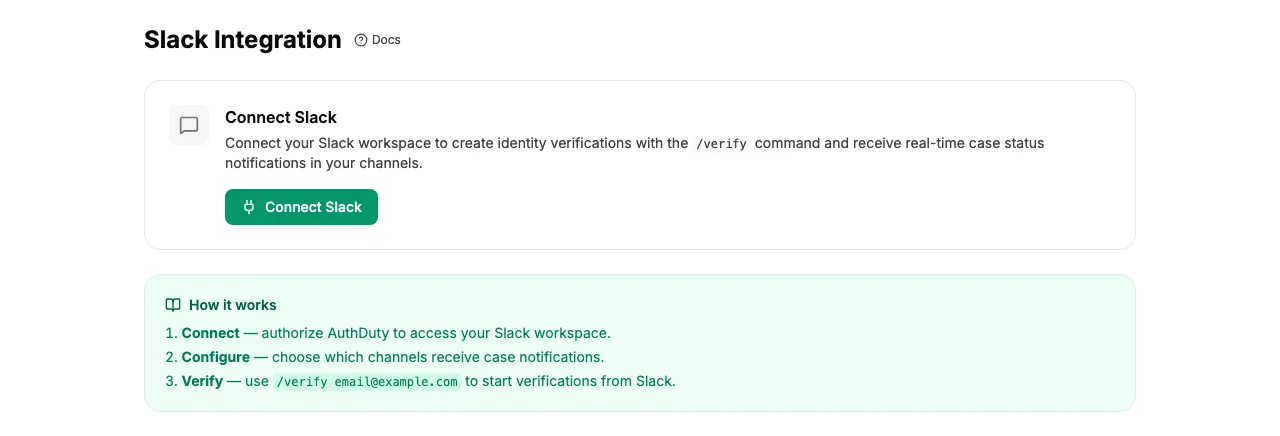
Connecting Slack
- Go to Settings → Integrations → Slack (Lead role required).
- Click Connect Slack.
- You'll be redirected to Slack to authorize the AuthDuty app for your workspace.
- After authorizing, you'll be redirected back to AuthDuty with a confirmation message.
Note: The AuthDuty bot must be invited to channels before it can post notifications there. Add it to a channel with /invite @AuthDuty in Slack.
Creating Cases with /verify
Once connected, any team member can use the /verify slash command in Slack:
/verify [email protected]- quick-verify with your team's default methods/verify [email protected] --edit- opens a modal to customize methods/verify [email protected] [email protected]- verify multiple people at once (opens modal)/verifyor/verify help- shows usage help
Case Notifications
Configure per-event-type notification channels from the Slack settings page. Supported events:
- Case Closed - verification completed successfully
- Case Failed - verification failed
You can send different event types to different channels. For example, send failures to an urgent channel and closures to a general log channel.
Notification Detail Level
Choose between two detail levels:
- Standard - includes the subject's email address and a link to the case
- Minimal - generic notification without personally identifiable information
Disconnecting Slack
To disconnect your Slack workspace, go to Settings → Integrations → Slack and click Disconnect. This removes the connection immediately - no more slash commands or notifications will be processed.