Two-Factor Authentication (TOTP)
Add a second layer of security to your account with time-based one-time passwords (TOTP). You'll use an authenticator app like Google Authenticator, Authy, or 1Password to generate codes at login.
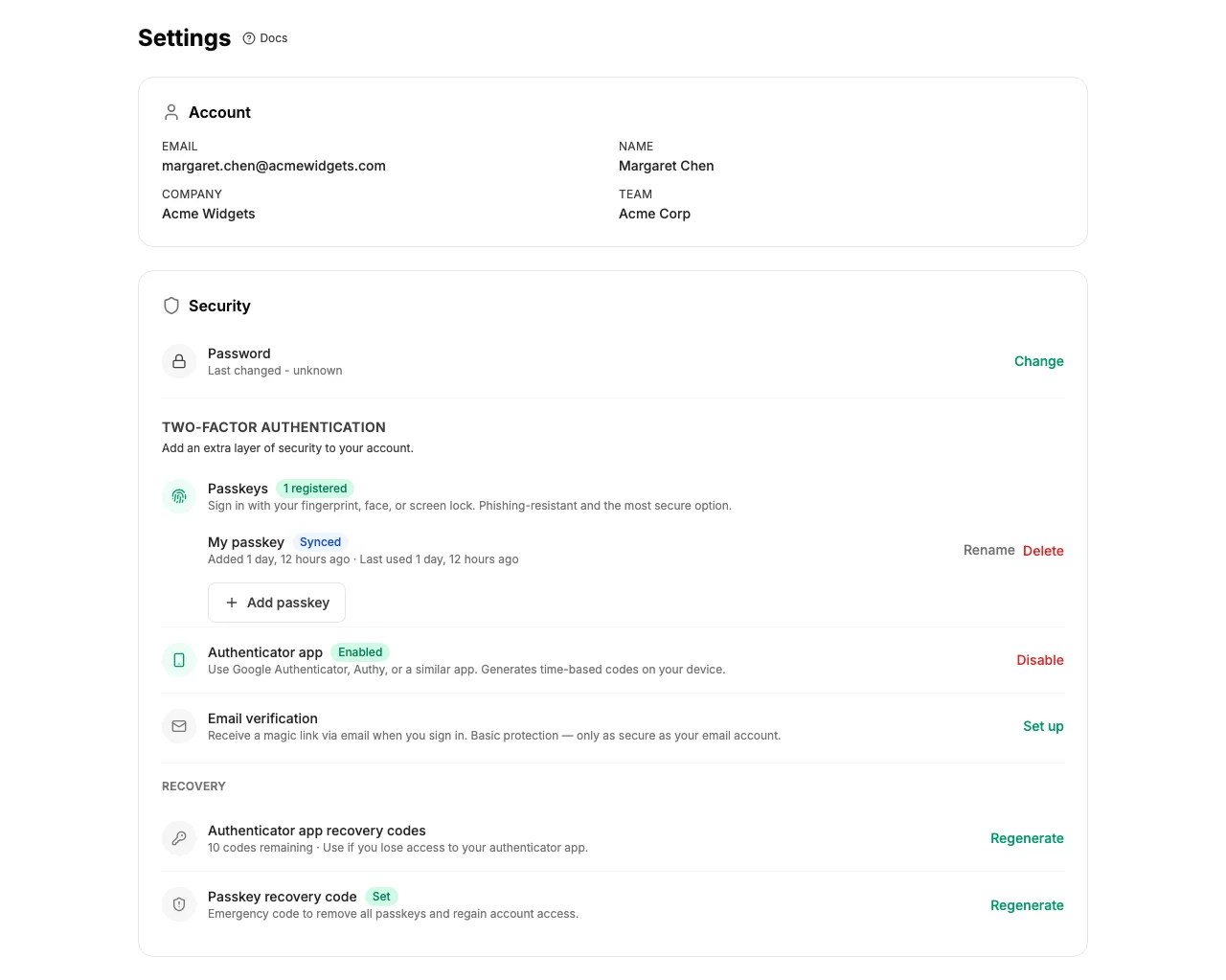
Setting Up TOTP
- Go to Settings → Security in the sidebar.
- Click Set Up Two-Factor Authentication.
- Scan the QR code with your authenticator app (or enter the secret key manually).
- Enter the 6-digit code from your app to confirm setup.
Once enabled, you'll be prompted for a TOTP code every time you log in with your password.
Logging In with TOTP
- Enter your email and password as usual.
- When prompted, enter the 6-digit code from your authenticator app.
- Click Verify to complete login.
Recovery Codes
When you set up TOTP, you'll receive a set of recovery codes. Store these in a safe place - you'll need them if you lose access to your authenticator app.
Important: Recovery codes are one-time use. After using a code, it's permanently consumed. If you run out of recovery codes, contact your team Lead for account recovery options.
Disabling TOTP
You can disable TOTP from Settings → Security. You'll need to enter a TOTP code to confirm the change. If you also have passkeys set up, TOTP can be removed independently.